
TL;DR – Methods to play Counter Strike 2
- Boosteroid: Best for casual players who want quick setup, low bandwidth use, and solid performance without tweaking settings.
- GeForce NOW: Ideal for users with faster internet who want top-tier visuals and access to a massive cloud server network.
- CrossOver: Great for users with higher-end Apple Silicon Macs who prefer local play and are comfortable applying fixes for better performance.
- Whisky: For tinkerers who value smoother mouse input and don’t mind bugs.
- Bootcamp: Only for Intel Macs with discrete GPUs – otherwise, use cloud gaming.
Today I’m diving into Counter-Strike 2 – the long-awaited follow-up to one of the most iconic shooters of all time. So, is it available for Mac? Unfortunately, no. But that’s not the end of the road. I tried a bunch of workarounds, and I’m sharing everything that actually works below.
Can You Play CS 2 on Mac?
Alright, let’s get the big answer out of the way first – Counter-Strike 2 does not run natively on macOS. You won’t find a Mac version in your Steam library, and Valve doesn’t seem to have any plans to change that. But don’t give up hope just yet – there are a few solid ways to play it anyway.
I tested several methods, and here’s the breakdown.
- Boosteroid is by far the easiest cloud solution. It runs CS2 in up to 4K at 120 FPS, works on most Macs, and needs very little internet thanks to its AV1 codec. Seriously, it’s impressive.
- GeForce NOW (GFN) is another good cloud option. It has a huge server network, also supports 4K/120, but needs a faster connection and costs a bit more.
- CrossOver lets you run the game locally without cloud streaming. It takes some setup, but if you want local performance, this is the way.
- Whisky is a local tool too, but honestly? It’s buggy and unsupported. It technically works, but comes with headaches.
- Bootcamp only works on Intel Macs, which are pretty much outdated now – and their GPUs can’t really keep up. You’re better off sticking with cloud solutions.
Click here for a more detailed breakdown of all the methods.
| Boosteroid and GFN | CrossOver | Whisky | BootCamp | |
| Requirements | ≥ 15 Mbps Internet speed (Boosteroid) ≥ 25 Mbps Internet speed (GFN) | Apple Silicon M1 or better | Apple Silicon M1 or better | MacBook Pro (i5 or i7) or better |
| Must Own Game | Yes | Yes | Yes | Yes |
| Supported game stores | Steam | Steam | Steam | Steam |
| Setup Difficulty | 1/5 – 🍼 Child’s Play | 4/5 – 🧩 Moderate Challenge | 3/5 – 🎯 Some Focus Required | 3/5 – 🎯 Some Focus Required |
| Time to Set Up | ~ 10 min | ~ 20-30 min | ~ 30-40 min | ~ 1-2 hours |
| Performance | 4/5 – near native experience | 4/5 – near native experience | 4/5 – near native experience | 1/5 – only a minuscule percentage of Intel Macs can run it |
| Stability | 4/5 – only minor hiccups | 4/5 – only minor hiccups | 3/5 – a bit finicky | 5/5 – very stable with powerful enough Macs |
Now let’s move on to how to use those methods.
How to Play Counter-Strike 2 on Mac
If you’re set on playing Counter-Strike 2 on your Mac, I’ve got you covered. I personally tested each of the main methods out there – cloud services, compatibility layers, even some of the more finicky workarounds. Below, I’ll walk you through exactly how to get each one up and running. Whether you want something quick and simple or you’re aiming for the best possible performance, there’s a method here that’ll fit your setup and comfort level. Let’s get into it.

How to Play Counter-Strike 2 on Mac With Boosteroid
- 1.1Click the Boosteroid button above. Create an account or sign up with Google.
- 1.2Go to your profile page(top-right), click Subscribe, select a preferred plan, and start your subscription.
- 1.3Search for “Counter Strike 2”, choose your preferred version of the game (Steam, Epic, etc.) and click Play (or Install and Play).
- 1.4Click OK, Let’s go, and wait for the game to load.
- 1.5Log into your game store account. Counter Strike 2 will launch directly in your browser.

How to Play Counter-Strike 2 on Mac With GFN
- 1.1Click the GeForce Now link → Join Now → sign up for your preferred plan.
- 1.2Go to the Downloads page. Download GeForce Now for macOS.
- 1.3Double-click the installer. Drag the app to your Applications folder.
- 1.4Launch GFN and log in.
- 1.5Click the menu in the top left → Settings → connect your respective game store account.
- 1.6Click the menu again → Games → search for Counter Strike 2, and click Play.
- 1.7Wait for the connection test. If you get a weak connection warning, you can ignore it by clicking Continue and still play the game.
- 1.8Wait for the game to load and start playing.
How to Play Counter-Strike 2 on Mac With CrossOver
- 1.1Click the CrossOver button, download the app (the free 14-day trial or the paid version), and install it.
- 1.2Open CrossOver → Bottle (top-left) → New Bottle → Create (Windows 10, 64-bit compatibility).
- 1.3Right-click the new bottle → Install Software → search for Steam and install it.
- 1.4Open Steam, log in, search for Counter Strike 2 in your library, and install it.
- 1.5After it installs, exit Steam, enable E-Sync, and D3DMetal, and Reboot the bottle.
- 1.6Start Steam again and launch Counter Strike 2 from your library.
How to Download Counter-Strike 2 on Mac With Whisky
- 1.1Click the Whisky button above and download the latest version.
- 1.2Double-click the downloaded .zip file and drag and drop the extracted Whisky to your Applications folder.
- 1.3Start Whisky. Click Open when asked to confirm the action. Click Next to install.
- 1.4Select Create a Bottle and create one with Windows 10 compatibility.
- 1.5Open this Steam page and click the Windows logo (under Install Steam) to download the Windows version.
- 1.6In Whisky, click Open C: drive. Drag and drop the SteamSetup.exe file into C:.
- 1.7Click Run in Whisky, find SteamSetup.exe, open it, and follow the prompts.
- 1.8When Steam installs, log in and click Allow when asked if you want the application to accept incoming connections.
- 1.9In Steam, find Counter Strike 2, click Install, and launch the game when its ready.
How to Run Counter-Strike 2 on Mac With Bootcamp
- 1.1Head to Microsoft’s official site and download the latest Windows 10 ISO file.
- 1.2Next, open Boot Camp Assistant (found in Applications > Utilities), click Continue → Choose, pick your downloaded Windows ISO file, then click Open.
- 1.3Adjust the slider to give your Windows partition at least 50 GB storage, then click Install → Next.
- 1.4The installation begins. Follow the prompts, skip the product key prompt by selecting “I don’t have a product key”, then finish setting up Windows as guided.
- 1.5Once Windows is installed and set up, download Steam, install it, and use it to download Counter Strike 2. Once that’s done, you are ready to play.
CS 2 on Mac – Performance
If you’re still on the fence about which method to try, let me break down how each one actually performed on my Mac. I tested everything myself – streaming, compatibility layers, and native workarounds – so you don’t have to go in blind. This section is all about real-world results: frame rates, input lag, visual quality, and overall stability. If you care about how smooth Counter-Strike 2 runs before committing to a method, this is where you’ll find the answers.
Streaming Counter-Strike 2 on MacBook With Boosteroid and GeForce Now
I tested Counter-Strike 2 on both Boosteroid and GeForce NOW, and both delivered a great experience.
With Boosteroid, setup was super quick – I logged into my Steam account, launched the game, and was in within minutes.
Even over Wi-Fi, I got smooth 1080p/60 FPS gameplay, and on Ethernet, I easily pushed it to 4K/120 FPS. Thanks to AV1 codec support, Boosteroid handled high resolutions without eating up too much bandwidth, which was a huge plus.
GeForce NOW also ran beautifully, and its massive server network made finding a low-latency session easy. I reached 4K/120 FPS here too, but it did need more bandwidth to stay consistent.
Input lag was low across both platforms, and my keyboard and mouse were instantly recognized. Both services felt stable and responsive. For cloud gaming, I’d call them equally viable – it mostly comes down to your internet connection and whether you are looking for better value or greater network flexibility.
Running CS 2 on Mac With CrossOver and Whisky
Running Counter-Strike 2 through CrossOver on Mac can actually deliver decent results – if you’ve got the right hardware.
On my tests using an M2 Max MacBook Pro, the game ran between 60–120 FPS on medium settings and stayed around 60–80 FPS on high, especially when using D3DMetal with E Sync enabled. That combo also reduced the usual micro-stutters that show up during gunfights.
Lower-end machines like the M1 or base M2 MacBook Air, though, struggled hard. Some users reported as low as 1–2 FPS, even with aggressive optimizations and launch options.
Whisky offered slightly lower FPS – around 15 fewer on average – but the mouse responsiveness felt noticeably smoother, which helped with aiming.
For anyone using a MacBook Pro with an M1 Pro or M3 chip, I’d expect somewhere in the 45–90 FPS range, depending on resolution and settings. Just don’t expect competitive-ready performance; occasional stutters, input lag, and even game crashes are still part of the experience, especially on lower-end setups.
CrossOver is generally more stable and better supported than Whisky, but if you’re sensitive to mouse feel, Whisky might be worth a shot. I’ve included fixes and tweaks in the next comprehensive optimization tutorial to help you reduce stuttering, boost FPS, and prevent crashes – definitely try those to get the smoothest possible experience.
Optimization Tips for Counter Strike 2 in CrossOver and Whisky
- 1.1Prep Your System
→ Ensure you’re on macOS Sonoma or newer.
→ Disable mouse acceleration:
macOS Settings > Mouse > Advanced > Toggle off acceleration.
→ Set your Mac to High Power Mode if supported (e.g. M1/M2/M3 Pro/Max).
→ Plug in your Mac and use an external mouse and Ethernet if possible. - 1.2Configure Steam for Performance
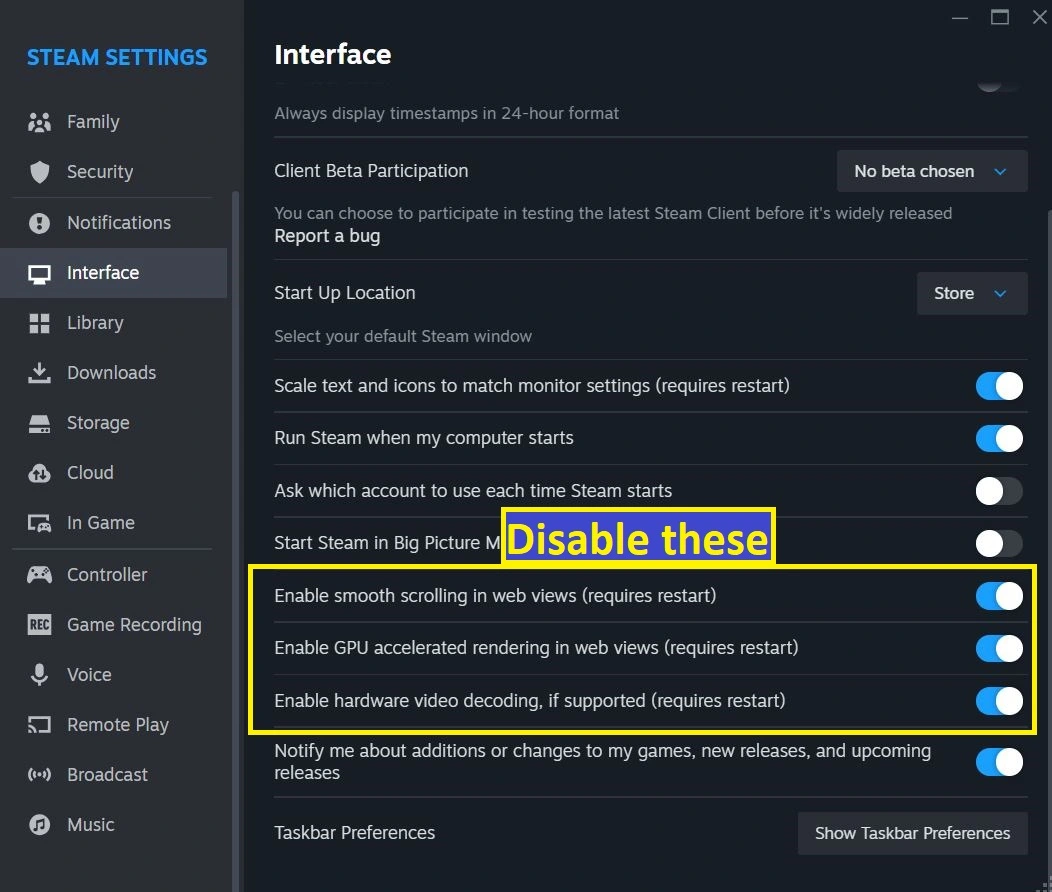
Inside Steam (within your CrossOver/Whisky CS2 bottle), click on Steam in the top-left and go to Settings → Interface. Then do the following:
→ Disable smooth scrolling
→ Disable GPU-accelerated rendering
→ Disable hardware video decodingThen go to Library and enable Low Performance Mode
Lastly, in the In-Game tab, disable Steam Overlay.
-
1.3Fix Crashes Using Registry Editor
→ Open Task Manager from the CS2 CrossOver/Whisky bottle.
→ Go to File > New Task, typeregedit.
→ Navigate toHKEY_CURRENT_USER\Software\Wine\Direct3D
→ Add a String value:VideoMemorySize
→ Set it to:
•2048for 8GB RAM
•4096for 16GB RAM
•16384for 32GB+ RAM - 1.4Set the Right Bottle Configuration
In your CS2 bottle:
→ Enable D3DMetal
→ Use ESync (skip MSync – it’s been linked to stutters and resource contention); If needed, test with MSync but not both simultaneously
→ Turn off Retina Mode
→ Disable “Advertise AVX support”
→ Do not use DXVK – D3DMetal is more stable - 1.5Launch and Cache Shaders
→ Launch CS2 directly from CrossOver (not Steam).
→ Hop into a bot match to allow shader caching.
→ After a few rounds, close the game completely and all bottle processes. -
1.6(Optional) Import Bottle into Whisky
If you prefer Whisky’s mouse handling or interface:
→ Open Whisky > File > Import Bottle
→ Navigate to your CrossOver bottle (~/CXPBottles)
→ Import and run Steam from thereIn Whisky Bottle Config:
→ Replicate the CrossOver settings (D3DMetal, ESync, etc.)
→ Keep Metal Performance HUD off unless debugging (it obstructs the screen) - 1.7Tweak In-Game Settings
Avoid setting everything to Low. Instead:
→ Medium textures
→ 4x MSAA
→ Medium shadows
→ Low particles
→ Medium ambient occlusion
→ High shaders
→ Balanced upscaling (better than no upscaling in many cases)Other recommendations:
→ Set resolution to something like 1280×960 stretched
→ Avoid changing Display Mode in-game (leave it in Windowed to prevent UI bugs)
→ Cap FPS to your monitor’s refresh rate for smoother feel (e.g. 60, 120 Hz) - 1.8Fix Common Audio & Input Issues
→
Audio crackling: open Audio MIDI Setup and set output to 96,000 Hz
→ Voice lag: Enable Streamlined Push to Talk in-game
→ Mouse polling lag: Drop polling rate to 125 or 250 Hz
→ Set mouse input device manually in bottle audio config if needed -
1.9Best Launch Options
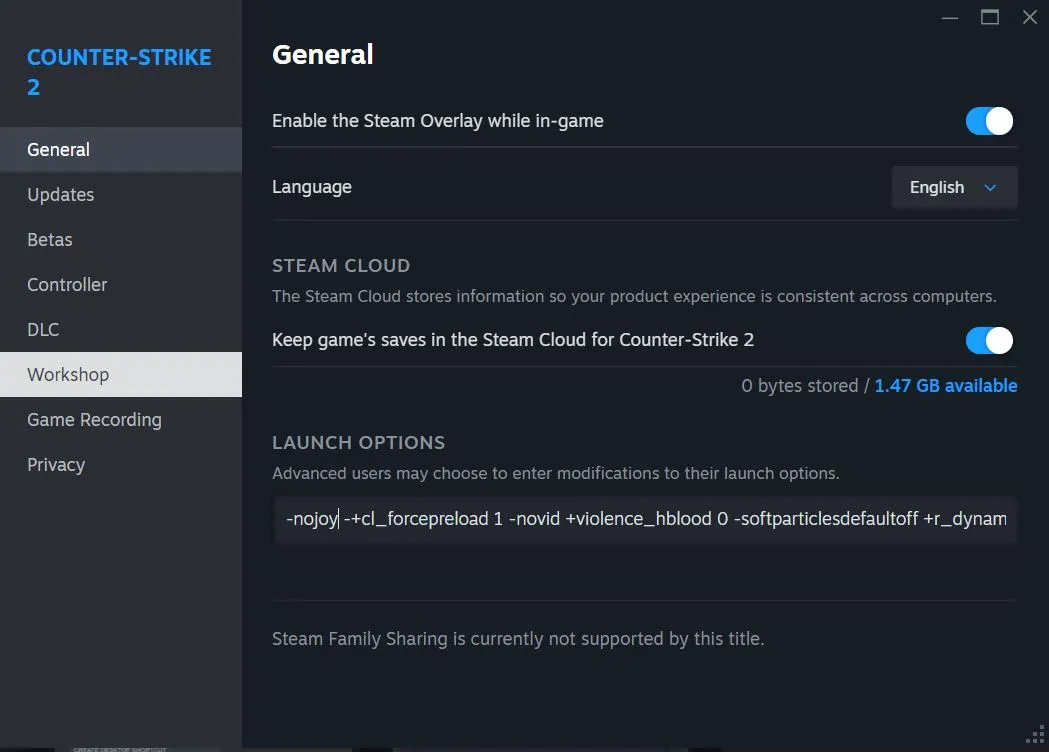
Before you start the game, click the gear icon next to it in your Steam Library and enter the following launch properties (without the quotes):
→"-nojoy“: disables controller support (significant FPS boost)
→"-novid": skips intro
→"+cl_forcepreload 1": preloads assets
→ “+r_dynamic 0“, “-softparticlesdefaultoff“, “+violence_hblood 0": reduces load from effects - 1.10Final Notes
→ If using M1/M2 base models, aim for lowest resolution and quality settings.
→ M1/M2/M3 Pro or Max can handle medium to high settings at 60–100 FPS, depending on map and action.
→ Monitor shader cache behavior – the game lags more on new maps initially.
→ Keep expectations realistic: not competitive-grade, but smooth enough for casual and semi-serious play.
Download Counter Strike 2 on Mac With BootCamp – Is it Even Worth It?
If you’re using an older Intel-based Mac, Bootcamp is technically still an option to run Counter-Strike 2, but it’s far from ideal. The game’s minimum requirements aren’t that high, but most Intel Macs – especially MacBooks – use integrated Intel graphics, which just don’t cut it for modern shooters.
At best, a higher-end iMac or MacBook Pro with a dedicated AMD GPU might hit 30–60 FPS on low settings, but expect thermal throttling and loud fans. Even if it runs, crashes and stuttering are likely, especially in intense moments.
If you’re on an Intel Mac, cloud gaming is by far the better route – you’ll get smoother performance, better visuals, and zero setup headaches. Bootcamp might work in a pinch, but unless your machine has a discrete GPU and enough cooling, you’ll have a better time streaming the game.
Counter-Strike 2 on Mac – Conclusion
So yeah, Counter-Strike 2 isn’t officially on Mac, but that doesn’t mean you’re out of luck. I went through every option I could find – from cloud streaming to native-ish workarounds – and while none are perfect, some definitely get the job done.
If you’ve got solid internet, cloud gaming is a no-brainer. If you’re on newer Apple Silicon and like experimenting, CrossOver can deliver solid results with the right tweaks. And if you’re on an Intel Mac… maybe just don’t.
In any case, there is a way to play – just depends how much effort you’re willing to put in. Good luck, and frag on.
Leave a Reply