

There are many, many ways to play Windows games that aren’t supported on Mac – and a lot of them are pretty user-friendly and don’t require much effort. Then there’s Sikarugir, the focus of this guide.
Sikarugir is a free Wine-based toolkit that delivers a ton of control, but it asks more of you in return. If you’re good with a little tinkering in exchange for keeping everything local, Sikarugir is your kind of project.
Sikarugir is the current continuation of the Wineskin-style approach (what you may have known as “Kegworks”). In practice, it lets you make a small macOS app – called a wrapper – that contains everything a Windows game needs: the Wine engine, a Windows-like file tree, and some built-in tools to tweak and fix stuff. Each wrapper is isolated. If one goes sideways, the others keep on truckin’.
It works on the same principle as CrossOver, but Sikarugir’s big upside is that it’s free. The flip side is that it’s not as polished as CrossOver and it’s not as easy as cloud gaming. That’s why this guide exists: to get you from “huh?” to “heck yes” without wasting weekends.
A quick glossary of terms you’ll see:
- Terminal
A text window where you type commands. Open it, paste command, press Return, something happens. That’s it. - Homebrew
A safe, popular package manager for macOS. Think “app store for command-line tools.” Install it once, then you can install or update things with short readable commands. - Sikarugir
A Wine wrapper manager. It’s the thing that makes macOS.appbundles (wrappers) for Windows games. Inside a wrapper you’ll have a Wine engine, a Windows-style file layout, and tools (Winetricks, config panels) to make the game behave. - Engine
A build of Wine + patches. You can have multiple engines installed and choose per-wrapper. Some games prefer older engines; others need the latest hotness. - Winetricks
A helper that installs common Windows components (.NET, VC runtimes, DirectX bits) and toggles graphics backends like DXVK. - Backends: DXMT, D3DMetal, DXVK, WineD3D
Different ways to translate DirectX graphics to what macOS can do:- DXMT: Direct3D-to-Metal (good default for many DX11 games).
- D3DMetal: a newer path targeting D3D11/12 on Apple Silicon. Results vary per game; some titles like it a lot.
- DXVK: Direct3D 10/11 to Vulkan (which then rides over MoltenVK on macOS). Often smoother in some DX11 titles or fixes specific glitches.
- WineD3D: Direct3D to OpenGL. The “it might work when others don’t” fallback, but slowest.
How to set up Sikarugir on Mac
Yes, this is the DIY path. The payoff is control, local installs, and the fact it’s all free. Expect some trial-and-error and keep your sense of humor handy. If you’d rather skip the learning curve, CrossOver or cloud gaming (Boosteroid, GeForce NOW, XCloud, etc.) are perfectly respectable choices.
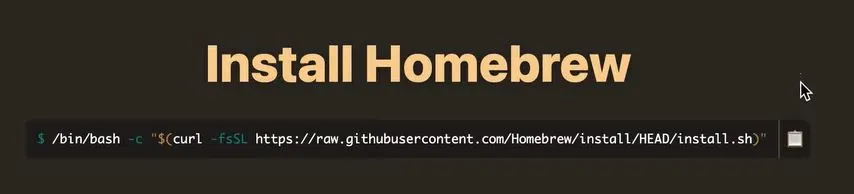
1) Install Homebrew
- Press Command (⌘) + Space to open Spotlight. Type Terminal, press Return.
- In your browser, go to the Homebrew homepage and copy the one-line install command (it starts with
/bin/bash -cand then a quoted script). - Back in Terminal: paste the command and press Return.
- Enter your Mac password if asked. The cursor won’t move as you type – that’s normal.
- If prompted to install Apple’s Command Line Tools, say yes.
- When it finishes, run:
brew helpIf you see a help page, you’re in business.
2) How to Install Sikarugir
Sikarugir distributes a GUI called Creator (what you may remember as a “Winery”) and the plumbing that goes with it.
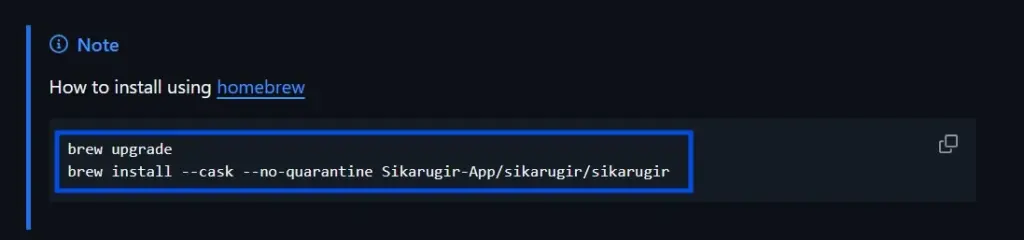
- Visit this Sikarugir link.
- Copy the Sikarugir installation command and paste it into Terminal.
- Run the installation command.
- When it finishes, open Applications in Finder and look for Sikarugir Creator. Double-click to launch.
Gatekeeper tip: If macOS says “can’t be opened,” go to System Settings → Privacy & Security and click Open Anyway for Sikarugir, then launch it again.
3) Install engines in Sikarugir
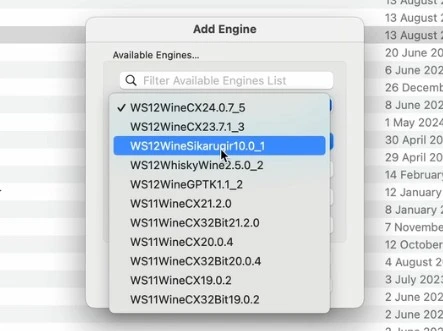
- Open Sikarugir Creator. On the left you’ll see Installed Engines (probably empty). Click the + button to open the engine list.
- I recommend first installing the WS12WineSikarugir engine as it should work okay with most games, but you can experiment with other engines too.
- Once an engine is installed, click the Update option if it’s available and wait for the engine to update.
4) Create your first wrapper
Back in the main Creator window:
- Select your preferred engine.
- Click Create New Blank Wrapper.
- Name it something obvious like Steam (Windows) so you don’t confuse it with native Steam.
- Wait for the wrapper to build. When it’s done, click View Wrapper in Finder.
You’ll now see a new app at:
~/Applications/Sikarugir/Steam (Windows).app
This is your Windows sandbox. It contains:
- A Windows-style C: drive.
- The engine you picked.
- Tools to configure and fix stuff later.
5) Install Steam inside the Sikarugir wrapper (two options)
You’ve got a wrapper. Now you need Windows Steam inside it. Two common ways:
Path A – Winetricks-assisted Steam (cleanest for many people)
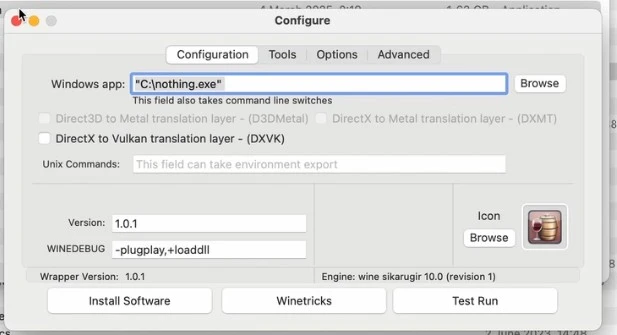
- Double-click the new wrapper to open its configuration window.
- Click Winetricks at the bottom.
- Search for Steam, expand the apps icon, select Steam, and click Run to install the Steam client.
- When all is ready, set the wrapper’s Windows EXE to:
C:\Program Files (x86)\Steam\steam.exe - Close the config window and then double-click the wrapper again. It will now launch Windows Steam and you’ll be able to log in to your Steam account.
Path B – Use Valve’s Windows installer inside the wrapper
- Go to this page, select the Windows logo under the Install button, and download the Windows version of the Steam installer.
- In the wrapper’s config window, click Browse and point to the downloaded installer.
- Close the config and double-click the wrapper to run the installer. Finish setup.
- Change the Windows EXE to:
C:\Program Files (x86)\Steam\steam.exeso launches go straight into Steam.
This path sometimes lets you get Steam going if the first option gets stuck, but the opposite is also possible.
Launch a game and pick a graphics backend (DXMT, D3DMetal, DXVK)
When you press Play in Windows Steam, one of two things happens:
- It just works. Neat.
- Or it shows weird graphics, a black screen, stutter, or crashes. That’s normal too.
This isn’t failure; it’s your cue to switch graphics backends.
- DXMT (Direct3D→Metal): Strong first pick for many DX11 games on Apple Silicon.
- D3DMetal (D3D11/12→Metal): Often the right call for some newer D3D12 titles; worth testing when DXMT is close but not quite stable.
- DXVK (Direct3D 10/11→Vulkan): Sometimes dramatically smoother in DX11 titles or the fix for specific rendering bugs.
- WineD3D (Direct3D→OpenGL): Slowest, but can dodge rare issues the others can’t.
How to switch
- Use Winetricks in the wrapper to install/toggle DXVK.
- Some games pop a dialog to choose Vulkan or DirectX on first run – Vulkan leans toward DXVK; DirectX 11/12 leans toward the Metal paths.
- You can also add Steam launch options like
-dx11or-dx12per game (right-click game → Properties → Launch Options). - Let the first launch run for a few minutes – shader compilation stutter often smooths out after a warm-up.
Sikarugir Optimizations, Tips, and Troubleshooting
Sikarugir is very usable once a wrapper is dialed in, but you’ll almost certainly meet at least one stubborn download, a weird launcher, or a game that needs a nudge.
What to Do When Downloads Inside the Wrapper Stall
Windows Steam may refuse to download a game on occasion and get stuck at 0% where it starts endlessly checking with no progress. This is the usual workaround:
- Open the Mac (native) version of Steam.
- Open Steam’s Console: paste
steam://open/consoleinto your browser and confirm. - In the Console, force Windows depots and install by AppID:
@sSteamCmdForcePlatformType windows app_install <APPID>The AppID is on the game’s store page URL or easily searchable. - When the Mac Steam finishes downloading, copy both:
- The game’s
.acffile from~/Library/Application Support/Steam/steamapps/ - The game folder from
~/Library/Application Support/Steam/steamapps/common/
- The game’s
- Paste them into the same paths inside your wrapper:
Steam (Windows).app → Show Package Contents → Contents/drive_c/Program Files (x86)/Steam/steamapps/(and.../steamapps/common/) - Launch your Steam (Windows) wrapper again. Steam should see the game as installed and verify files quickly.
Add common runtimes if a game complains (Winetricks essentials)
Many installers or games need Microsoft runtimes. The two most common:
- vcrun2022 – Visual C++ Redistributable (modern C++ apps/games).
- d3dcompiler_47 – Helps with shader compile/launch issues.
Open Winetricks in your wrapper, search for those names, and Run them. If a launcher demands a specific .NET version, install that exact one – newer isn’t always accepted.
Read useful logs without becoming an engineer
Here’s what to do when something fails silently and you’ve got no idea why:
- Right-click your wrapper → Show Package Contents.
- Open the Sikarugir config tool inside.
- Click Advanced (or Tools → Test Run) and launch from there to capture the output.
- Copy the log if you’re asking for help. Skim for repeating error lines or missing components; the fix is often one toggle away.
Quick fixes for the usual suspects
- Download stuck at 0% → Use the Mac Steam Console method above; copy
.acf+common/<game>into the wrapper. - Black screen but audio plays → Switch DXMT ↔ DXVK, try
-dx11or-dx12, then relaunch. - UI microscopic on Retina → In
winecfg(Fonts), increase DPI to ~120–150 or toggle Wine’s Retina mode off; relaunch the wrapper. - Fullscreen feels weird → Use Borderless Windowed in-game, or set a virtual desktop in Wine if the game hates macOS fullscreen swapping.
- Micro-stutter even at “good FPS” → Give it 10–15 minutes to warm caches; if it persists, swap backends and reduce heavy settings first (shadows, RT, ambient occlusion) before dropping resolution.
- Controller not detected or behaves oddly → In Steam (per-game Controller settings), toggle Steam Input off/on, try the Xbox layout, and restart the game.
- “App can’t be opened” warning → System Settings → Privacy & Security → Open Anyway once, then launch again.
Recommended in-game settings
- Resolution: Target 1080p or 1440p first; 4K is a reach unless you know your hardware can handle it.
- Upscalers: If a game offers FSR/TSR/etc., begin with Quality or Balanced.
- Shadows & post-processing: Easy wins – dial them down before touching resolution.
- Background noise: Close browser tab bloat, giant downloads, and heavy cloud sync while testing.
- Measuring: The game’s own FPS counter is good enough. If you want deeper data, Apple’s Metal Performance HUD works.
Safety & limits you shouldn’t ignore
- Anti-cheat: Some multiplayer games simply won’t run under compatibility layers unless the developer supports it. Kernel-mode or tightly locked user-mode anti-cheat is usually a hard no.
- True 32-bit titles: Modern macOS and Apple Silicon are effectively 64-bit-only in this context. If a game is truly 32-bit Windows with no 64-bit build, assume it won’t run here.
When to stop tinkering
Call it after you’ve tried:
- DXMT and DXVK, plus
-dx11/-dx12 vcrun2022andd3dcompiler_47- The Steam Console depot workaround
- A 10–15 minute warm-up run for shader caches
If you’re still seeing crashes, unfixable stutter, or anti-cheat blocks, it’s time to change tactics: check a CrossOver recipe (there’s a trial) for a more curated path, or play via cloud gaming tonight while you wait for wrapper/engine updates. Your time matters.
Real-World mini case studies (Sikarugir + Apple Silicon)
Sikarugir is still Wine under the hood, so playability and performance are case-by-case. The following titles are popular, current, and specifically tested or discussed under Sikarugir. We’ve validated the notes here through due research and testing.
Path of Exile (PoE 1) / Path of Exile 2 (Early Access)
Engine: A recent WS12 engine tends to behave best.
Backend: Start with D3DMetal on Apple Silicon. If PoE1 shows visual oddities or unstable frametimes, try DXVK for DX11 and compare.
Install: Steam via Winetricks inside the wrapper. If downloads stall, use the Mac Steam Console trick and copy depots into the wrapper’s steamapps.
Expectations: Very playable on modern M-series at sensible settings. First-run shader stutter improves quickly after a warm-up. If mapping feels uneven, try Borderless Windowed and retest backends.
Peak
Engine: New WS12 is fine, but if it’s fussy, the older WS11 line can be surprisingly stable.
Backend: The game may offer Vulkan vs DirectX on first launch. Try Vulkan (DXVK) first; if you see UI flicker or crashes, flip to DXMT and add -dx11 to Launch Options.
Notes: If the invite UI is stubborn, launch directly into a lobby using a steam://joinlobby/... link. You can run it via Tools → Task Manager inside the wrapper or append it (quoted) after steam.exe in the Windows EXE field so Steam opens straight into the lobby.
Lethal Company (co-op)
Engine: Recent WS12 engine.
Backend: Many users get smoother results with DXVK on Unity DX11; if you hit black screens or a non-rendering window, switch to DXMT and force -dx11.
Notes: Voice chat problems are usually permissions. Check System Settings → Privacy & Security → Microphone and ensure your wrapper/Steam has access. For controllers, toggle Steam Input per-game and relaunch.
Diablo II: Resurrected / Diablo IV (Battle.net)
Engine: WS12 recommended.
Backend: D3DMetal is the sanest first pick. If you encounter odd rendering artifacts or input jank, try DXVK.
Notes: Battle.net itself is the tricky bit. Expect occasional updates that change behavior. If the launcher gets stuck, reinstall Battle.net inside the wrapper, or keep two wrappers – one for Battle.net, one that launches the game EXE directly once installed.
Assassin’s Creed Origins
Engine: WS12 engine.
Backend: DXMT first; if geometry/UI acts up or the benchmark stutters strangely, test DXVK.
Notes: A frequent hiccup is hanging at “checking for updates.” Workarounds: relaunch in offline mode, run the game EXE directly from Steam, or simply give it a few minutes (it sometimes resolves after the launcher finishes background checks).
Clair Obscur: Expedition 33
- Engine: A modern WS12WineCX often paired with DXMT works for many.
- Backend toggle: If DX12 shows geometry glitches, fall back to DX11 with
-dx11; if performance tanks under DX11, go back to DX12 and lower heavy settings. - Expectation: Playable on higher-end M-series at sensible settings with some first-run stutter that improves.
Left 4 Dead 2 (Source)
Engine: WS12 or WS11 both fine.
Backend: DXMT or DXVK – try both and keep whichever yields steadier frametimes.
Notes: If you see hitching, dial down shadows and disable V-Sync. This is a good “smoke test” for your wrapper and controller mapping.
Megabonk (indie)
Engine: WS12.
Backend: D3DMetal behaves cleanly here; good “small project sanity check.”
Notes: If input feels floaty, toggle Steam Input per-game (Xbox layout often helps) and restart.
Other launchers (short, honest notes)
We focused on Steam because it’s the least fussy under Wine, but what about other platforms?
Epic Games Launcher
Installable, but the embedded browser can render black or crawl on some engines. Many people install Epic in a separate wrapper or use Heroic to manage downloads, then point to the game’s EXE.
GOG Galaxy
Similar story – possible, but finicky. Often better to skip Galaxy and use offline installers, then run the game EXE directly.
EA App / Ubisoft Connect
These change frequently and occasionally break rendering under Wine. Some days they’re fine; other days you’re chasing windows that never render. If your must-play title needs one, budget extra time or pivot to a different method if you’re on a deadline.
Heroic
Great for Epic/GOG libraries in general. You can make it see your Sikarugir wrappers, but keep your first build Steam-centric so you learn the knobs with fewer variables.
Final notes on using Sikarugir
Sikarugir is tinkering with a safety net. Wrappers are isolated, which means you can try bold changes without fear of corrupting your whole setup. When you finally land on a perfect build for a tricky title, duplicate that wrapper and label it “golden.” That copy becomes your known-good baseline – if an experiment breaks something later, you just go back to the golden one and play.
Remember the triangle: time, polish, money. Sikarugir saves money, but it costs time and asks you to be hands-on. CrossOver costs money and saves time. Cloud gaming costs a bit and saves both time and blood pressure. Pick the vertex that fits your week.
Sikarugir Setup: A quick recap:
- Install Homebrew (paste the one-liner from brew.sh into Terminal; follow prompts).
- Install Sikarugir via Homebrew; allow Open Anyway if macOS complains.
- In Sikarugir Creator, install two engines (one modern WS12, one WS11 fallback).
- Create a wrapper named Steam (Windows).
- Open the wrapper → Winetricks → install Steam (Windows). Set Windows EXE to
steam.exe. - Launch the wrapper, log into Steam, install a game. If downloads stall, use the Steam Console backup plan and copy files into the wrapper.
- If visuals are off or stutter persists, switch backends (DXMT ↔ DXVK ↔ D3DMetal) and try
-dx11/-dx12. - Add vcrun2022 and d3dcompiler_47 if the game hints at missing components.
- Tune settings sanely (resolution, upscaler, shadows). Measure, then tweak.
- When it clicks, duplicate the wrapper as your golden build and enjoy the victory lap.
Frequently Asked Questions About Sikarugir
Yes. Move ~/Applications/Sikarugir (or just specific .app bundles) to a fast external SSD. Open the wrapper from there or re-add it in Sikarugir. Keep the drive connected while you play.
~/Applications/Sikarugir/. Size depends on the game and shaders; expect multiple gigabytes per wrapper for big titles. Isolation is the point: each wrapper carries its own baggage so problems don’t spread.
First-launch security: System Settings → Privacy & Security → Open Anyway. If it still won’t start, open the wrapper’s config → Advanced/Test Run to capture a log. Usual fixes are installing missing runtimes (vcrun2022, d3dcompiler_47), switching backends, or trying a different engine (WS11 vs WS12).
Switch DXMT ↔ DXVK and try -dx11 or -dx12. Relaunch after each change. Confirm you’ve installed the common runtimes.
In winecfg (Fonts), bump DPI to ~120–150 or disable the wrapper’s Retina mode. Restart the wrapper afterward.
In Steam → per-game Controller settings, toggle Steam Input off/on, test the Xbox layout, and restart the game. Some titles won’t expose prompts until after a restart.
Use the Mac Steam Console to fetch Windows depots (@sSteamCmdForcePlatformType windows then app_install <APPID>), then copy the .acf file and the game folder into the wrapper’s steamapps paths. Relaunch Windows Steam and verify files.
Not reliably. It’s a moving target thanks to tech and anti-cheat constraints. Consider other approaches if CS2 is your goal.
In Steam → per-game Controller settings, toggle Steam Input off/on, test the Xbox layout, and restart the game. Some titles won’t expose prompts until after a restart.8