
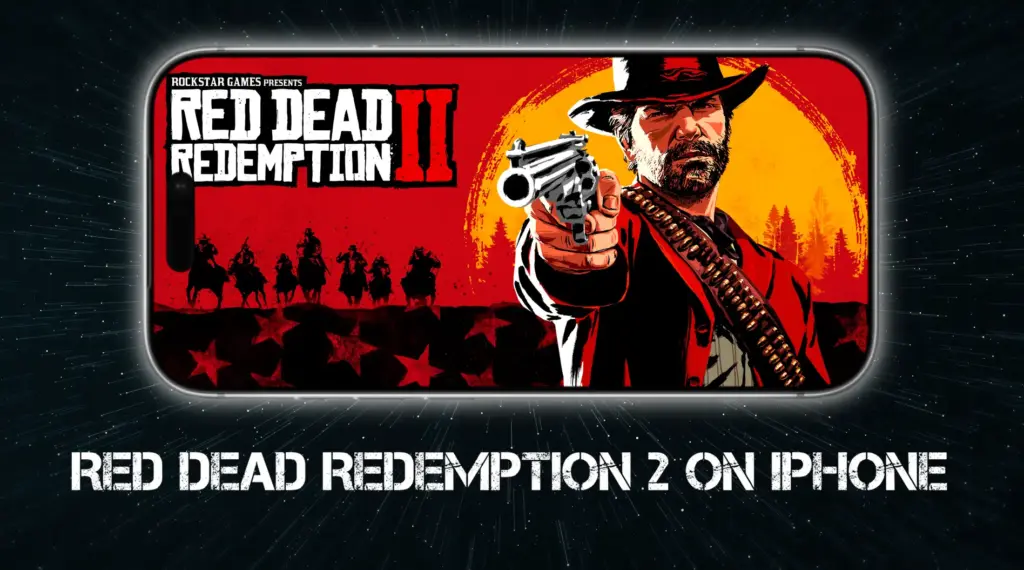
Red Dead Redemption 2 on an iPhone sounds like a meme, but it’s doable. There’s no native iOS or iPadOS version, and there’s no practical “install it locally” workaround either. So on Apple mobile devices, the only realistic route is cloud streaming: you run the Windows version on someone else’s hardware and stream it to your screen.
Can You Play Red Dead Redemption 2 on iPhone and iPad?
Yes – just not natively. On iPhone and iPad, “playing Red Dead Redemption 2” means streaming the Windows version from the cloud. The only real decision is what kind of cloud you want: a simple “click Play” service that hosts the game for you, or a full cloud PC where you install everything yourself.
- Boosteroid is the most straightforward option right now. Red Dead Redemption 2 is available there as a “bring your own game” title, and it supports the Steam, Epic, and Rockstar versions. Expect a first-run login through the Rockstar layer, even if you own it on Steam or Epic.
- If you want maximum flexibility, Shadow PC works because it’s a full Windows desktop in the cloud. You install the Rockstar launcher (or Steam/Epic), download the game, and play like you would on a normal PC – just streamed to iOS.
- AirGPU is another full cloud PC route that can run RDR2. It’s great if you play occasionally and don’t mind setup, but you’ll want to pay attention to hourly costs and iOS streaming-client quirks.
- CloudDeck is also listed as playable for RDR2, with the usual caveat: on iOS the connection layer can be fussier than “press play,” so it’s best for people who don’t mind a slightly more technical setup.
Click here for a more detailed breakdown of all the methods.
| Boosteroid | Shadow PC | AirGPU | CloudDeck | |
| Requirements | Stable Wi-Fi / 5G ~15+ Mbps recommended | Stable Wi-Fi / 5G ~15–25+ Mbps recommended | Stable Wi-Fi / 5G ~10+ Mbps recommended | Stable Wi-Fi / 5G ~15+ Mbps recommended |
| Must Own Game | Yes | Yes | Yes | Yes |
| Supported stores | Steam / Epic / others (BYO) | Any Windows launcher | Any Windows launcher | Steam / Epic / GOG (service-dependent) |
| Setup Difficulty | 1/5 – 🍼 Child’s Play | 3/5 – 🎯 Some Focus Required | 4/5 – 🧩 Moderate Challenge | 4/5 – 🧩 Moderate Challenge |
| Time to Set Up | ~ 5–10 min | ~ 15–30 min | ~ 20–40 min | ~ 20–40 min |
| Performance | 4/5 – near console feel | 4/5 – strong, very flexible | 4/5 – strong, very flexible | 3–4/5 – depends on rig/service |
| Stability | 4/5 – minor hiccups | 4/5 – generally stable | 3/5 – can be finicky | 3/5 – can be finicky |
Now let’s move on to how to use those methods on iPhone and iPad.
How to Play RDR2 on iPhone and iPad
Below are the mini-walkthroughs for each cloud method. Some are “log in and press play” simple, and others are full cloud PCs where you install games like you would on a normal Windows machine. Pick the path that matches your budget, your patience level, and how much control you want over settings and mods.

How to Play Red Dead Redemption 2 on iPhone and iPad With Boosteroid
- 1.1Open Safari on your iPhone or iPad and go to boosteroid.com. Log in or create an account (Google sign-in works too).
- 1.2Tap your profile and choose Subscribe, then pick a plan and activate it.
- 1.3Optional but recommended: tap Share → Add to Home Screen to make Boosteroid feel like a real app.
- 1.4Search for “Red Dead Redemption 2”, pick the store version you own (Steam, Epic, etc.), then click Play (or Install and Play if prompted).
- 1.5Sign in to your game store/launcher when asked. Once it loads, connect a controller and start playing.
How to Play Red Dead Redemption 2 on iPhone and iPad With Shadow PC
- 1.1Create an account on shadow.tech and choose a plan that fits your needs.
- 1.2Install the Shadow PC app from the App Store on your iPhone/iPad, then log in.
- 1.3Launch Shadow and start your cloud PC session. Pair a controller (or keyboard/mouse on iPad) if you plan to use one.
- 1.4Inside the Shadow Windows desktop, install your launcher (Steam/Epic/Rockstar/etc.), then download and install Red Dead Redemption 2.
- 1.5Start the game from your launcher and play. Future sessions are simple: open Shadow, launch the game, and go.
How to Play Red Dead Redemption 2 on iPhone and iPad With AirGPU
- 1.1Create an account at airgpu.com, add a payment method/credit, and create a gaming PC machine in your dashboard.
- 1.2Click Start and wait until your machine status shows it’s running.
- 1.3Click Connect with Moonlight (or the connection option AirGPU provides) and copy the host address shown in the connection dialog.
- 1.4On iOS, standard Moonlight may not connect to remote cloud PCs due to iOS limitations. Use a Moonlight-based iOS client that supports remote connections (or use a VPN like WireGuard/ZeroTier to make the host appear local).
- 1.5Enter the pairing PIN back in the AirGPU connection dialog, connect to the Desktop, then install your launcher and download Red Dead Redemption 2 like a normal Windows PC.
How to Play Red Dead Redemption 2 on iPhone and iPad With CloudDeck
- 1.1Create an account on clouddeck.app, choose a plan, and open your CloudDeck portal.
- 1.2Start your CloudDeck session, then click Connect to open the connection dialog and note the host address it shows you.
- 1.3On iOS, install VoidLink – Extreme (a Moonlight-based client that supports remote connections), then tap Add Host.
- 1.4Enter the CloudDeck address into VoidLink, but follow CloudDeck’s iOS note: replace the domain ending .my.clouddeck.app with .my.airgpu.com.
- 1.5Pair with a PIN (VoidLink shows a PIN, you enter it in the CloudDeck dialog), then launch the stream. Once inside, sign in to Steam/Epic and install Red Dead Redemption 2.
How to Get the Best RDR2 Experience on iOS
For RDR2, 1080p at 60 FPS is the sweet spot on iOS. On a smaller screen, you get a surprisingly “console-like” image, and you avoid the bandwidth spikes that make open-world scenes turn into compression soup.
The biggest quality killer is unstable Wi-Fi, not raw GPU power – especially in areas with lots of grass, trees, smoke, and long sightlines.
If you stream it through Boosteroid, you’re doing the simplest “login and go” version of the experience. If you stream it through Shadow or AirGPU, you’re getting more control (and potentially better consistency if you tune the PC properly), but you’re also signing up for installs, updates, and a much larger setup footprint.
Either way, RDR2’s required Rockstar account checks can occasionally force a re-login, so it helps to keep your credentials handy.
RDR2 on Boosteroid (iPhone/iPad)
Boosteroid is the cleanest “tap, log in, play” route for RDR2, and a few tweaks make the stream look sharper and feel less sluggish.
- Stick to 1080p / 60 FPS as your baseline target.
- Use Safari + Add to Home Screen so it behaves like an app and stays more stable in full screen.
- If your device supports it and Boosteroid offers it, enable AV1 for a cleaner image at the same bandwidth in the browser version (not every device can decode AV1 smoothly).
- Prefer 5 GHz Wi-Fi (or Ethernet via adapter) and avoid playing far from the router – open-world games punish unstable networks.
Shadow PC and Red Dead Redemption 2 (full Windows PC in the cloud)
Shadow is the “full PC” solution: best when you want the most control over how RDR2 runs and looks.
- Set your stream to 1080p / 60 first, then scale up only after you’ve confirmed stability.
- Keep bitrate/bandwidth below your real sustained download speed (stability beats peaks).
- If you have codec options, try a more efficient codec (like HEVC/H.265) for better quality per Mbps – and back off if it introduces stutter.
- Inside Windows, pause launcher downloads/updates while playing (they love stealing bandwidth mid-mission).
AirGPU RDR2 Optimizations (rent-a-PC, often Moonlight-based)
AirGPU can be great value if you play occasionally, but the connection layer on iOS is where most friction lives.
- Start with 1080p / 60 and a conservative bitrate; raise quality only after you confirm stable sessions.
- Choose a machine/region closest to you; cloud PC distance shows up as input delay fast.
- If using Moonlight-style streaming, keep your stream settings simple: stable bitrate, consistent frame rate, no fancy “auto” experiments mid-session.
- Expect iOS to be pickier about remote streaming clients; if you hit connection limitations, the fix is usually a different compatible client or a VPN-style setup that makes the host behave “local.”
- Shut down the machine when you’re done to control costs; hourly pricing punishes “I left it running overnight.”
In-Game Optimizations for RDR2 on iPhone
Here are some specific in-game settings youcan tweak to improve your streaming quality and smoothness, regardless of what service you are using for the cloud stream:
- In-game: turn off motion blur, film grain, and chromatic aberration to reduce stream smear in motion.
- In-game: keep resolution scale at 100% and prefer TAA for a consistent, stream-friendly image.
- Controls: lower aim/look dead zones a bit and bump sensitivity slightly so aiming feels more responsive through cloud latency.
CloudDeck (Steam/Epic-style, Proton-backed, Moonlight-style streaming)
CloudDeck can work nicely once you’re connected, but iOS typically needs the “right client + right address” setup to behave.
- Use the iOS-compatible streaming client CloudDeck recommends (this is the make-or-break step on iPhone/iPad).
- Start with 1080p / 60 and a moderate bitrate; “stable and clean” beats “sharp but stuttery.”
- If CloudDeck provides a special hostname/address format for iOS, follow it exactly (small mismatches can kill the connection).
- Prefer a controller-first setup; it’s the most reliable input path for cloud sessions on phones/tablets.
- Keep overlays/lightweight: disable unnecessary in-game overlays that can cause odd input focus issues in streamed environments.
- In-game: same streaming-friendly rule-reduce blur/film grain, keep UI readable, and don’t crank post-processing that turns compression artifacts into soup.
Controllers for RDR2 on iPhone and iPad
Touch controls can work for menus, but for most PC games they’re basically misery. I strongly recommend using a controller: either a telescopic grip that turns your phone into a handheld (Backbone-style, Kishi-style), or a standard Bluetooth controller if you’d rather sit back.
Pay attention to ports: newer iPhones use USB-C, older ones use Lightning, and not every “Android USB-C” controller plays nicely with iOS. Once paired, controller-first streaming feels dramatically more natural.
Playing RDR2 on a TV From iOS
If you want a big-screen setup, you have two common paths. The easy one is AirPlay to an Apple TV or AirPlay-compatible TV – great for convenience, but it can add a bit of extra lag.
For the lowest latency, a wired connection is usually better: use a USB-C to HDMI or Lightning to HDMI adapter (depending on your iPhone/iPad), then play with your controller as normal. If your Wi-Fi is solid, either option can be perfectly playable.
Red Dead Redemption 2 on iPhone and iPad – Conclusion
On iOS, playing Red Dead Redemption 2 is a cloud decision. If you want the least friction, start with a “bring your own game” service like Boosteroid (and consider GeForce NOW when the game is supported there).
If you want a full Windows machine you control, Shadow PC is the cleanest version of that idea, while AirGPU is great for occasional sessions if you don’t mind the extra setup. Add a good controller, keep your Wi-Fi stable, and you’re basically carrying a gaming PC in your pocket.